New era is available in the database and BI market and its name is "SQL Server Denali". Believe me, you'll definitely love to work on it. Yesterday night I installed this on my laptop and here I'm sharing my experience with you.
Installation is quite straight-forward, but you would find additional tab pages while installation. In the below screen you can see new features for selection like Data Quality Services, Data Quality Client, Distributed Replay Controller, and Distributed Replay Client.
You can download it from following link
http://www.microsoft.com/sqlserver/en/us/future-editions.aspx
http://www.softpedia.com/get/Internet/Servers/Database-Utils/Microsoft-SQL-Server.shtml
(This is free till today... Not sure if you need to pay tomorrow

)
After download you will get 3 files in your folder and once you click on the installation file you will get the last file (SQLFULL_x86_ENU_Lang.box)
Once you click on application file it'll extract the Set-up file and all supporting file in the folder named "SQLFULL_x86_ENU".
You'll find the following file and folders in the "SQLFULL_x86_ENU" folder.
Important: While Installation you must be connected to internet for the updates (Optional). It'll download approximately 500MB data for installation.
Now you need to double click on Setup.exe file in this folder and get ready for some more configuration setting which is important while for the installation. This installation quit similar to SQL Server - 2008.
Now you can see the default window on your screen. It is showing the Planning tab.. as follow.
Here you can analyze your requirement and do the planning accordingly .
Next is Installation tab, where you can select the appropriate option for the installation. Here I'm selecting the first option "New SQL Server Stand-alone installation"
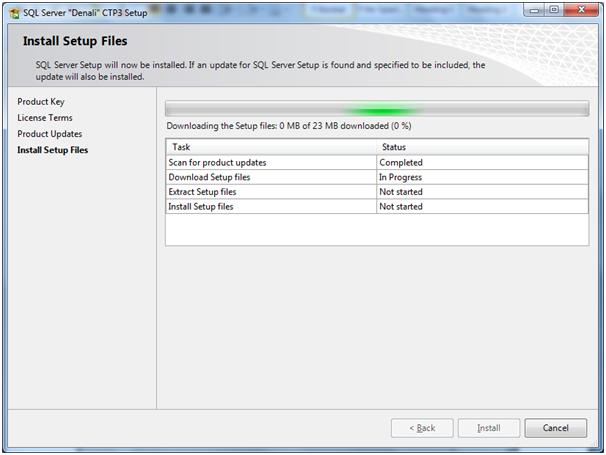
Now I'm just adding few Images which will come across your installation process where you need not to do more. Simply click to next. :)
Setup Support Rules, simply check the following operation on your system. If its fail you need to rectify that and then you need to start again. After this you just go with the flow.
Product updated are optional here... if you need to install these updates you need to connect to internet.
As mention in the above screen-shot that "Setup Updates" will be installed immediately.
Setup Support Rules again check the set related requirement before starting the installation.
Here I'm creating the another instance (named) of SQL Server Denali with the "Denali" name.
Installation Wizard uses the some default services accounts for running the services. you can change these services to your name.
You can change these service Accounts to your account.. I did it (This is optional)
And SQL Server Denali is ready to server you.. Let me know if you are facing any problem during the installation.
......