Pages

Showing posts with label Manish Sharma. Show all posts

Tuesday, October 16, 2012

SSIS TUTORIALS: Important links


You can expect:

This is a low intensity post (you should be able to do this in your sleep). I'm trying to collect all important links which will be useful for all new SSIS (  SQL Server Integration Services ) learners.
I can see many of the SSIS MSDN forum post for the same and very usual.


SSIS TUTORIALS: Important links:

here you can find the important links for your learning which may help you.

ONLINE
this is MSDN link which guide you to enhance your knowledge


LOCAL SYSTEM
when you have SQL Server installed go to 
Start>All Programs>Microsoft SQL Server 2008 R2>Documentation and Tutorials>SQL Server Tutorials.


BOOKS
these books are paid services, you can read these books online but membership is required. here you can search for others relevant books also.

free E-Book

Safari Books 

wrox.com
amazon.com

Integration Services Videos


Other Important Links

Request:

As learning never ends so I have a humble request to all readers. If you guys find out some other helpful links for SSIS learning, Please share with me or comment.

Thursday, August 18, 2011

Delete Empty Excel work sheets dynamically through SSIS

Yesterday I visited the SSIS forum and come across this requirement (delete empty excel sheets dynamically from a excel workbook). In SSIS we have to write the Script in Script Task. We've to use COM API to do this.


Follow below steps to solve this problem.

Step1: Open your BIDS and Use a Script Task  under the control flow.

Step 2: Select the Script language in which you are comfortable. Here I'm using the VB Script and than click on the Edit Script button.

Step3: In the Script Editor you need to add the "Microsoft.Office.Interop.Excel.dll" in your reference.

if you want to use this DLL, following these steps:

  • On the Project menu, click Add Reference.
  • On the COM tab, locate Microsoft Excel Object Library, and then click Select. In Visual Studio 2008, locate Microsoft Excel 12.0 Object Library on the COM tab.
  • Click OK in the Add References dialog box to accept your selections. If you are prompted to generate wrappers for the libraries that you selected, click “Yes”.


Step 4: you need to import the following reference in your code.
Imports Microsoft.Office.Interop.Excel


Step 5: Write the following code and change the appropriate path for your excel file ( you can use the SSIS variable for passing the file name)


Public Sub Main()
        Dim Wexcel As Microsoft.Office.Interop.Excel.Application = New Microsoft.Office.Interop.Excel.Application()
        Dim Wb As Workbook = Wexcel.Workbooks.Open("C:\emptyExcelSheet.xls")
        Dim wf As WorksheetFunction = Wexcel.WorksheetFunction


        For Each sheet In Wexcel.Worksheets 
            If wf.CountA(sheet.Cells) = 0 Then
                Wexcel.DisplayAlerts = False
                sheet.Delete()
                Wexcel.DisplayAlerts = True


            End If
        Next sheet
        Dts.TaskResult = ScriptResults.Success
    End Sub

Step 6: Build the code first and then close the script editor. Now you can execute your package and test the results.

Hope this helps you..


Wednesday, August 10, 2011

SSIS - Denali vs 2008 - Control Flow

Hurry !!! Denali (SQL Server 2011) is available for all Techic's now. In the last post I've explained about the installation steps for denali. After the installation, I opened the SSIS and I found a single new member(Task) in control flow where as missing below 2 tasks:


Below image is showing the SSIS Denali vs SSIS 2008 Control Flow tool list. There is NO big change in the SSIS again(after a first look) ...

               SSIS 2008                                                                         SSIS Denali


SQL SERVER :: Denali (2012) :: Step By Step Installation Guide

New era is available in the database and BI market and its name is "SQL Server Denali". Believe me, you'll definitely love to work on it. Yesterday night I installed this on my laptop and here I'm sharing my experience with you.

Installation is quite straight-forward, but you would find additional tab pages while installation. In the below screen you can see new features for selection like Data Quality Services, Data Quality Client, Distributed Replay Controller, and Distributed Replay Client.

You can download it from following link

http://www.microsoft.com/sqlserver/en/us/future-editions.aspx
http://www.softpedia.com/get/Internet/Servers/Database-Utils/Microsoft-SQL-Server.shtml
(This is free till today... Not sure if you need to pay tomorrow)


After download you will get 3 files in your folder and once you click on the installation file you will get the last file (SQLFULL_x86_ENU_Lang.box)


Once you click on application file it'll extract the Set-up file and all supporting file in the folder named "SQLFULL_x86_ENU".

You'll find the following file and folders in the "SQLFULL_x86_ENU" folder.


Important: While Installation you must be connected to internet for the updates (Optional). It'll download approximately 500MB data for installation.


Now you need to double click on Setup.exe file in this folder and get ready for some more configuration setting which is important while for the installation. This installation quit similar to SQL Server - 2008.


Now you can see the default window on your screen. It is showing the Planning tab.. as follow.
Here you can analyze your requirement and do the planning accordingly .


Next is Installation tab, where you can select the appropriate option for the installation. Here I'm selecting the first option "New SQL Server Stand-alone installation"


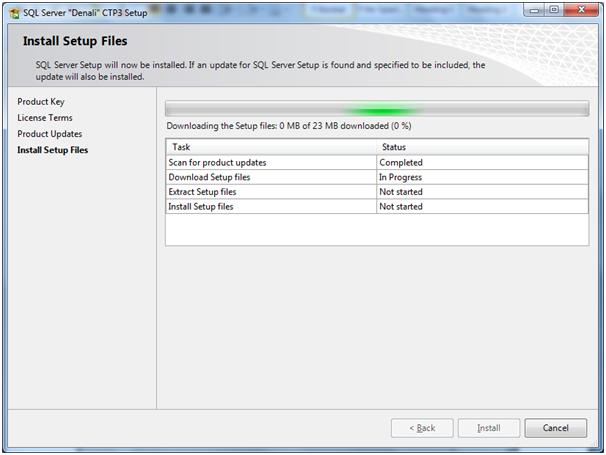
Now I'm just adding few Images which will come across your installation  process where you need not to do more. Simply click to next. :)

Setup Support Rules, simply check the following operation on your system. If its fail you need to rectify that and then you need to start again. After this you just go with the flow.


Product updated are optional here... if you need to install these updates you need to connect to internet.


As mention in the above screen-shot that "Setup Updates" will be installed immediately.


Setup Support Rules again check the set related requirement before starting the installation.


Here I'm creating the another instance (named) of SQL Server Denali with the "Denali" name.


Installation Wizard uses the some default services accounts for running the services. you can change these services to your name.


You can change these service Accounts to your account.. I did it (This is optional)


And SQL Server Denali is ready to server you.. Let me know if you are facing any problem during the installation.


......

Friday, March 25, 2011

Handling extra/missing columns in Delimited Flat file

Delimited Flat files (CSV) are one of the important non-relational source for SSIS ETL but if we get robust file all the time then we can use inbuild flat file source in SSIS. Surprisingly we are not that much lucky and get the data in which columns are missing (or we can say extra columns) like as follow...
Problem Reference(Click here) 


So handling such a file is very problematic for a SSIS ETL developer.Here I'm giving you some work around for such cases


  1. SSIS Delimited File Source available at Codeplex  (Click here)
  2. Script Component--- Check Sudeep's Blog (Click here)
  3. Flat file source which reads all data into one column and then splits them based on index of the comma in a derived column.
Here I'm giving you the demonstration to handle such file with the help of derived column.We have to write expression (sometime complex) to get the proper data in column format. In the above example I am getting all the data as String and after splitting we are saving it as string only (If you want to change the data type then you can use Data Conversion task). If number of columns are more then this approach is not recommended, In that case you should go with the first 2 approach.

Step1: Inside the Data Flow Task (DFT), Select a Flat File Source and Derived column.


Step2: Configure the FlatFile Source in such a way that you will get all input data in single column.


Note:  We are keeping the Column name as "C" in the example.

Step3: Double click the derived column and use the following logic.

  • For separating the column "C1" from the column "C", we need to fetch the data from position 1 to first occurrence of delimiter " " so finding the first delimiter we have to use FINDSTRING SSIS function (Returns the location of the specified occurrence of a string within a character expression).
  • SUBSTRING(C,1,FINDSTRING(C,",",1) - 1)
  • Here we have to do "-1" because we have to exclude delimiter from the column value.
  • For separating the column "C2" from the column "C", we have to fetch the data after the first delimiter to 2nd delimiter but before that we have to check whether we have 2nd delimiter in place

  • FINDSTRING(C,",",2) != 0 ? SUBSTRING(C,FINDSTRING(C,",",1) + 1,FINDSTRING(C,",",2) - FINDSTRING(C,",",1) - 1) : SUBSTRING(C,FINDSTRING(C,",",1) + 1,LEN(C) - FINDSTRING(C,",",2))  
  • For separating the column "C3" from the column "C"
  • FINDSTRING(C,",",2) == 0 ? "NULL" : (FINDSTRING(C,",",3) != 0 ? SUBSTRING(C,FINDSTRING(C,",",2) + 1,FINDSTRING(C,",",3) - FINDSTRING(C,",",2) - 1) : "NULL")

  • For separating the Last column "C4" from the column "C",we have to fetch the data after the third delimiter to end of the row. and for calculating the last position of the row, we have to use LEN SSIS function
  • FINDSTRING(C,",",3) == 0 ? "NULL" : SUBSTRING(C,FINDSTRING(C,",",3) + 1,LEN(C) - FINDSTRING(C,",",2))
Step4: And result would be as expected..


Note: Let me know your valuable comments to make this post more robust and helpful..

Thursday, August 19, 2010

Write data from Multiple tables to single flat file


It's simple if you are transferring your single table data to a single file means its one-to-one mapping. Many threads I observed at MSDN forum where user want different set of data (Header, Detail, Trailer) in a single file or data from the multiple tables to single flat file. It's not difficult in SSIS but it is tricky.


Solution:
USE 3 dataflow tasks one for each table with precedence constraints to have them execute in the correct order.


Important: 
Each destination would use its own connection manager but they would all point to the same flat file. The only thing you would need to do is in the flat file destination property grid (or advanced editor) make sure you set the overwrite flag to false for the second and third dataflows so that the file will be appended to. 


DFT 1:
OLEDB Src (header table) --> FlatFile Dest
(using flat file conn mgr 1 (filename = OutputFile.csv), overwrite set to true)


DFT 2:
OLEDB Src (details table) --> FlatFile Dest
(Using flat file conn mgr 2 (filename = OutputFile.csv), overwrite set to false)

DFT 3:
OLEDB Src (trailer table) --> FlatFile Dest
(Using flat file conn mgr 3 (filename = OutputFile.csv), overwrite set to false)

----------------------------------------------------------------------------------------------------
Get the sample package..
For step-by-step explanation, please check the following document.
OR
----------------------------------------------------------------------------------------------------


There are lots of other ways to do this. but in the above method, you don't need any specific programming skill. Do let me know if you have any doubt..

Wednesday, June 30, 2010

Convert Number to IP address

Convert Number to IP address.

Use the following query to convert the number into an IP Address..


DECLARE @IP_NUM AS INTEGER
SET @IP_NUM=1135863234 

SELECT CAST(@IP_NUM/16777216 AS VARCHAR(3)) +'.'+  
CAST((@IP_NUM%16777216)/65536 AS VARCHAR(3)) +'.'+ 
CAST( ((@IP_NUM%16777216)%65536)/256 AS VARCHAR(3))   +'.'+ 
CAST(((@IP_NUM%16777216)%65536)%256 AS VARCHAR(3))

Result:
67.179.229.194

Please give some suggestion to make it better.

Wednesday, May 5, 2010

Load CUBE data to SQL table using Script task

Recently I faced an issue while working with SSAS 2008 cube. I was using a data flow task and inside that I have OLEDB source (The Analysis Services 9.0 OLE DB Provider (msolap90.dll)) for fetching data using MDX query. I was running this package in BIDS, its working fine. But as I was trying to run it with DTEXEC command, it’s throwing following error:


• ERROR message:

SSIS Error Code DTS_E_OLEDBERROR. An OLE DB error has occurred. Error code: 0x80040E05. An OLE DB record is available. Source: "Microsoft OLE DB Provider for Analysis Services 2008." Hresult: 0x00000001 Description: "Error Code = 0x80040E05, External Code = 0x00000000:.".


Component "OLE DB Source" (2297) failed the pre-execute phase and returned error code 0xC0202009.

Environment:
SSIS package on SQL Server 2005. BIDS 2005
SSAS cube on SQL server 2008.


Solution:
I have tried many possible solutions but no success. Finally I wrote a script task code which is connecting to CUBE and dumping the cube data in flat file with comma delimited format. Later on I used this flat file to laod data in SQL table.

I would like to share this code, may this helps other.

Important: Please add the "Microsoft.AnalysisServices.AdomdClient.dll" dll to your reference.


Microsoft.AnalysisServices.AdomdClient.dll is available under the link below,http://www.microsoft.com/downloads/en/details.aspx?FamilyId=228DE03F-3B5A-428A-923F-58A033D316E1&displaylang=en
Download "Microsoft ADOMD.NET " from the link above and after running msi file you will get
Microsoft.AnalysisServices.AdomdClient.dll under folder.
C:\Program Files\Microsoft SQL Server\100\SDK\Assemblies\Microsoft.AnalysisServices.


**********************************************************
Public Sub Main()
Dim serverName As String = "Manish"
Dim databaseName As String = "CRM"
Dim databaseID As String = databaseName
Dim cn As String = "Provider=MSOLAP;Data Source=" & serverName & ";Initial Catalog=" & databaseName
Dim connex As New AdomdConnection(cn)

connex.Open()

Dim commandText As String

commandText = "SELECT [Country].[Country Code].MEMBERS ON 0, [Time].[Gregorian Calendar].[Year] ON 1 FROM [CUBE2008];"

Dim cmd As AdomdCommand = New AdomdCommand(commandText, connex)
Dim dr As AdomdDataReader = cmd.ExecuteReader(CommandBehavior.CloseConnection)

' output the rows in the DataReader
Using writer As StreamWriter = New StreamWriter("c:\myfile.txt")
While dr.Read()
For i As Integer = 0 To dr.FieldCount - 1
If (dr(i) Is Nothing) Then
writer.Write(" , ")
Continue For
Else
writer.Write(dr(i).ToString() + " , ")
End If
Next
writer.WriteLine()
End While
End Using
dr.Close()

Dts.TaskResult = Dts.Results.Success

End Sub

***************************************************************

Let me know your valuable comment to make this post better.

Saturday, April 17, 2010

Processing Options for SSAS Objects

PROCESSING OPTION SSAS2008

Process Default: (Applicable for **All objects)
Performs the minimum number of tasks required to fully initialize the object. The server converts this option to one of the other options based on the object state.

Process Full (Applicable for All objects)
Drops the object stores and rebuilds the object. Metadata changes, such as adding a new attribute to a dimension, require Process Full.

Process Update (Only for Dimensions) 
Applies member inserts, deletes, and updates without invalidating the affected cubes.


Process Add (Only for Dimension & Partition)
Adds only new data.

Process Data (Dimension, cube, measure group, partition)

Loads the object with data without building indexes and aggregations.

Process Index(Dimension, cube, measure group, partition)
Retains data and builds only indexes and aggregations.

Unprocess (All Objects) 
Deletes the object data or the data in the containing objects.

Process Structure ( Only CUBE)
Deletes the partition data and applies Process Default to the cube dimensions.

------------------------------------------------------------

**SSAS objects list
  • Database
  • Dimension
  • Cube
  • Measure group
  • Partition
  • Mining structure
  • Mining model